

Settings
Open it from Settings in the main window. Remote uses the same window to edit the destination session.
Display
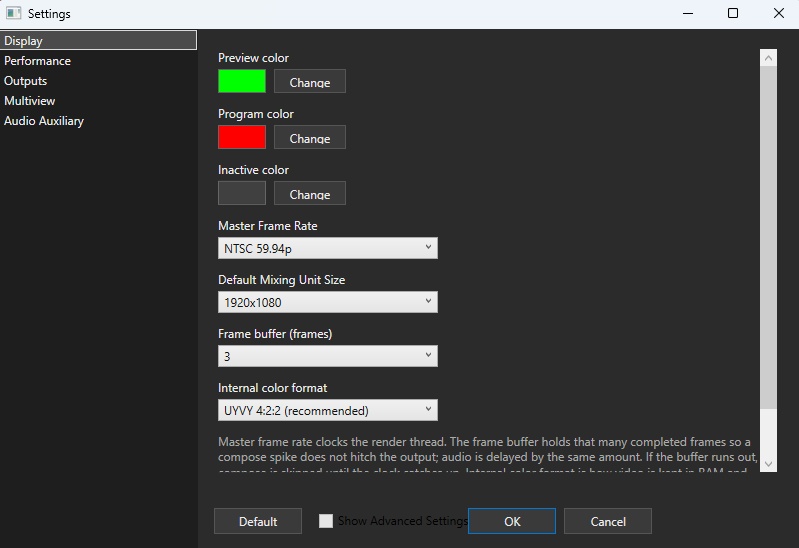
Section titled “Display”Adjusts what you see in the GUI.
Colours
Section titled “Colours”Preview, Program, and Inactive colours paint button and scene-tile chrome. Collapsed scene tiles and switcher scene buttons use the same colours for fill. Defaults are green, red, and grey.
Master frame rate
Section titled “Master frame rate”The frame rate shared by the session. Default is NTSC 59.94p; 23.976p, 24p, 25p, 29.97p, 30p, 50p, 60p, 119.88p, and 120p are also listed.
The mixer takes this value at create time, so save the session and reopen it, or restart the app, after a change.
Each Mixing Unit can override output frame rate from its own dialog.
Default Mixing Unit size
Section titled “Default Mixing Unit size”The default resolution of Mixing Units you add later. Default is 1920×1080. Existing units stay put. This control is on the Windows Display tab.
Frame buffer
Section titled “Frame buffer”How many finished frames to keep in memory. Default is 3.
It buffers so a late compose does not stop the output; audio is delayed by the same count.
If processing cannot keep up within that count, frames are skipped until the clock catches up. The pipeline is in System architecture.
Internal colour format
Section titled “Internal colour format”How pixels sit in RAM and on the upload path. The default, UYVY 4:2:2, is half the size of BGRA and converts to RGB only for frames that are actually composed. BGRA 8-bit 4:4:4 is for when you want to skip that convert. Changing it rebuilds file ingest pumps. Windows Display tab only.
Performance
Section titled “Performance”Settings that affect compose performance.
Graphics adapter
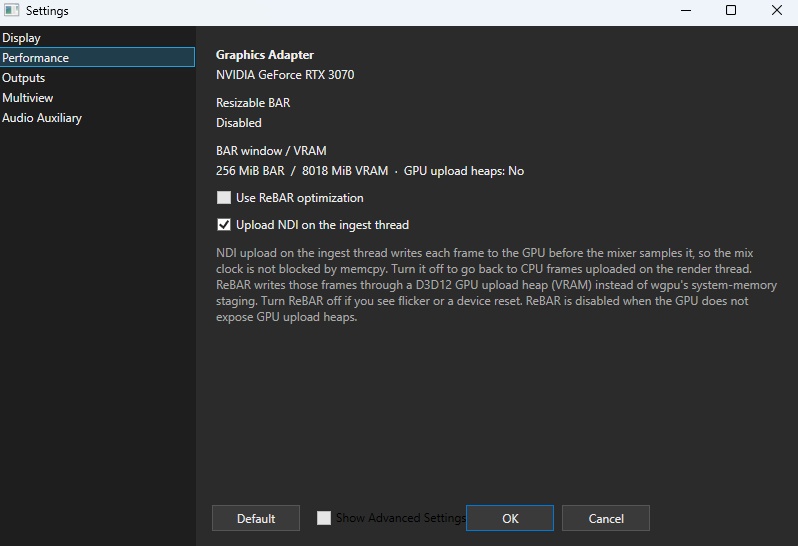
Section titled “Graphics adapter”Shows the graphics adapter in use.
Resizable BAR / Unified Memory
Section titled “Resizable BAR / Unified Memory”On Windows you get Resizable BAR status, BAR window / VRAM, and whether GPU upload heaps exist.
Use ReBAR optimization writes frames straight into GPU VRAM on upload. Integrated GPUs, and adapters that do not expose upload heaps, cannot turn it on. Turn it off if you see flicker or tearing. Why ReBAR is assumed is in About eiviz.
Even on a Resizable BAR system, GPU upload heaps may be unavailable — for example on Windows 11 before 24H2 — so this optimization cannot be used.
On Apple Silicon the same idea is Unified Memory optimization. Live inputs land in MTLStorageModeShared textures and are sampled there. Off falls back to the ordinary Metal upload path.
Upload NDI on the ingest thread
Section titled “Upload NDI on the ingest thread”On by default. On uploads each received frame to the GPU from a dedicated CPU thread. Off uses the shared render thread.
Outputs
Section titled “Outputs”Where pictures leave the mixer.
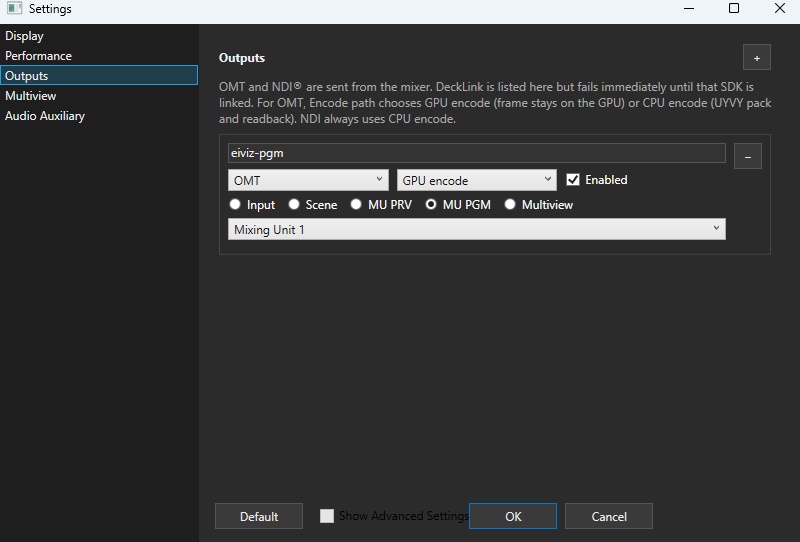
Each row is a name, a transport, an On/Off switch, a video source, audio, resolution, and frame rate.
Transport is OMT, NDI, DeckLink, or RTMP. RTMP uses a stream encoder and a Keychain-held stream key; DeckLink requires the Pro module and supported hardware.
Source can be Input, Scene, MU PRV, MU PGM, or Multiview.
Audio is one Mixing Unit’s MU Bus, or None (no audio).
When Multiview is selected as the video source, audio cannot be sent.
Resolution and frame rate are per output. Follow session settings uses the Mixing Unit (or the session master frame rate and default size). Video is sent at that rate, not as soon as compose finishes.
OMT supports two encoding paths:
- CPU (Recommended): The default high-quality encoder. Recommended for Mixing Unit Program and other broadcast feeds. Frames are read back as UYVY, converted to the VMX codec, and sent on a dedicated CPU thread.
- GPU: An auxiliary encoder that offloads work from the CPU. Useful for Multiview and secondary monitoring outputs where lower compression efficiency is acceptable.
NDI is always CPU encoded.
One thread is assigned per output. Detail is in NDI / OMT.
Windows applies when you press OK. macOS can also Apply per row.
Streaming (RTMP) diagnostics
Section titled “Streaming (RTMP) diagnostics”When a stream does not start and the log says stream destination id=…: stream encoder is not running (…), first check that the session defines a stream encoder with that name and that the ingest URL and its secret are set. The text in parentheses is the result of the latest encoder add (for example the last add failed: ...). When the encoder add itself fails, an earlier stream encoder id=… line names the reason: picture size or frame rate, the plan limit, or a build without the Pro streaming module. The encoder picker lists OpenH264 plus Media Foundation on Windows (the OS encoder; NVIDIA/AMD/Intel hardware when the GPU driver provides it) and OpenH264 plus VideoToolbox on macOS. On Windows, choosing Media Foundation shows an encoder device field: it lists the Media Foundation H.264 encoders this machine offers (GPU-vendor hardware and the OS software encoder) and takes one by name. Automatic follows the mixer’s order (NVIDIA, AMD, Intel, then others, then software). A device that cannot be built is an error at stream start; the stream never switches to another device on its own.
Multiview
Section titled “Multiview”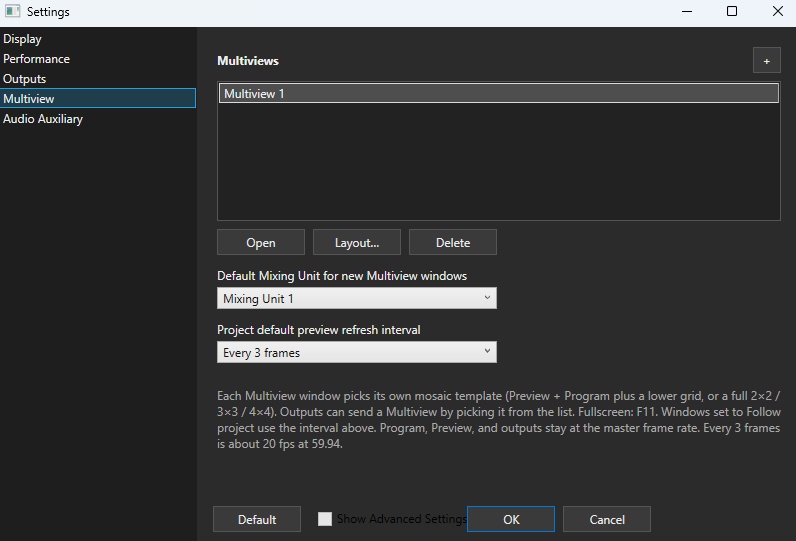
Adds and controls monitor mosaics. Detail is in Multiviews.
Default Mixing Unit for new Multiviews
Section titled “Default Mixing Unit for new Multiviews”Which Mixing Unit’s Preview/Program a newly created Multiview watches.
Project default preview refresh interval
Section titled “Project default preview refresh interval”The project-default frame skip. Lower it on a weaker PC so monitoring does not hurt performance.
Every frame through every 8 frames. Default is every 3, about 20 fps at 59.94.
Headphone
Section titled “Headphone”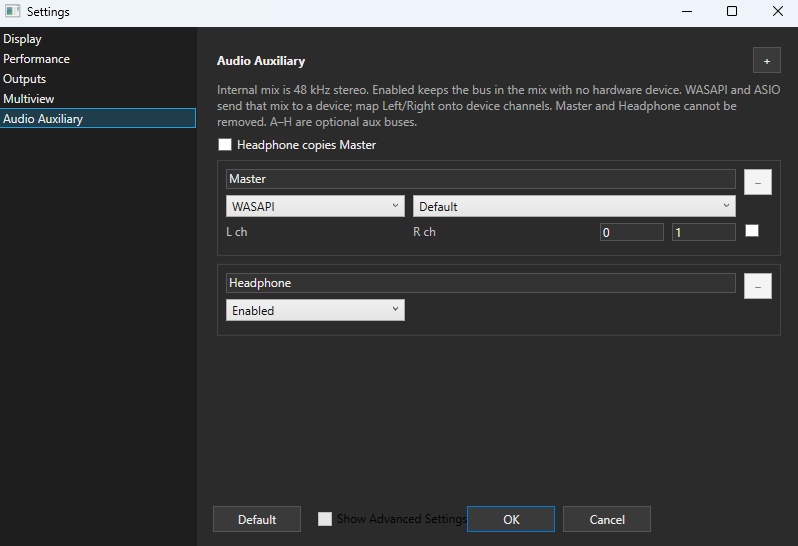
The internal mix is 48 kHz stereo. This page sets the Headphone output device. Choose what to hear with the headphone icon on a meter. Each Mixing Unit’s own output device is on the Mixing Unit dialog.
Detail is in MU Bus and Audio, ASIO, and related.
None keeps the mix internal. Hardware output is WASAPI shared or ASIO.
Web API
Section titled “Web API”vMix-compatible HTTP, vMix-compatible TCP, and Protobuf WebSocket listen settings. HTTP and TCP stay in the session file. WebSocket bind address, token, max role, and media directory are host Preferences (or headless CLI/env). Enable and port in Settings still apply to the host listen. See eiviz API for the protocol.
- HTTP: start the HTTP server when the mixer starts. Default on. Default port 8088
- TCP: vMix TCP API on port 8099. Default on. Port is fixed
- WebSocket: Protobuf control API. Default on. Default port 9400, subprotocol
eiviz.protobuf.v1. Default bind is loopback. Non-loopback bind requires a token. This release is authenticatedws://on a trusted LAN or VPN; TLS is not included - Username / password: BasicAuth on HTTP if either is set. Both empty means no HTTP auth. TCP has no auth. WebSocket tokens are the listen token in Preferences, or
EIVIZ_API_TOKENfor headless - Browser
Origin:EIVIZ_API_ALLOWED_ORIGINS(comma-separated;*allows any). When unset, connections that sendOriginare refused. See eiviz API
If the HTTP port is already in use, eiviz shows a warning and attempts to bind the next port (e.g. 8089). If only port 8099 is busy, HTTP still runs and TCP warns on its own. A WebSocket bind failure is handled similarly. Listen start/stop and Functions are written to the mixer log (Help → Logs).
Endpoints and Functions are in Compatibility APIs and the Function Reference.
Advanced
Section titled “Advanced”Video output destination window limit
Section titled “Video output destination window limit”Sets the maximum number of simultaneous real-time preview windows (Preview, Program, Multiview). The current usage count is shown beneath the setting. This limit is enforced exclusively under DirectX 12.
A Switcher UI shows both Preview and Program, consuming 2 slots. Main Preview/Program, each open Multiview, the Scene Editor, and the Overlay window count toward this limit (scene thumbnails and input previews do not).
Auto defaults to 6. You can raise it in Settings, but doing so may reduce system stability.
When the limit is reached, new windows will not open until an existing window is closed to free a slot. The host implementation is detailed in System architecture.
Preferences
Section titled “Preferences”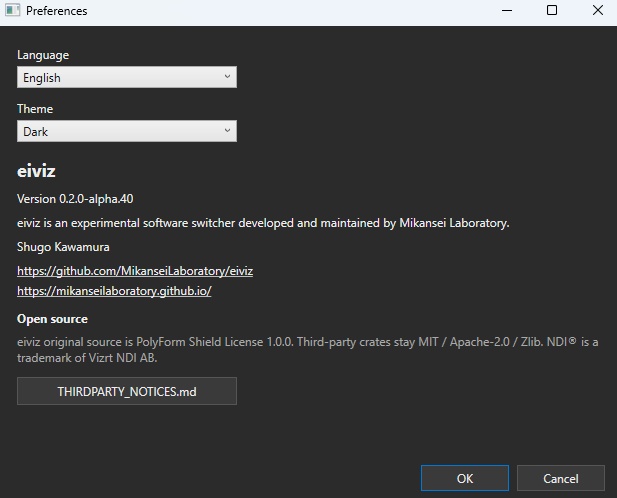
Global eiviz settings.
Language
Section titled “Language”English / 日本語.
Dark, Light, or Follow OS.
Connection
Section titled “Connection”Eiviz.Host.exe runs the mixer on this computer. Eiviz.Remote.exe operates another eiviz over WebSocket. Remote connects from the Connect button in the top left. Steps and video handling are in Remote connection.
API listen (host)
Section titled “API listen (host)”Bind address, listen token, and uploaded media directory. Non-loopback bind requires the token. When unset, the directory is %LOCALAPPDATA%\eiviz\media on Windows, or the equivalent OS path. Still/Video added from a remote client land in this directory.
Headless
Section titled “Headless”Running without a GUI is Headless. Edit listen values with eivizctl prefs.
Opens the official docs for the language in use.
- English: https://mikanseilaboratory.github.io/eiviz/en/
- 日本語: https://mikanseilaboratory.github.io/eiviz/ja/
Replay
Section titled “Replay”Available on Professional and above, and only while the project has a Replay input. The recording settings live in the dedicated Replay Setup window rather than here; see Instant Replay for the full picture.
- Storage: one or more drives while replay is enabled. Angles record to the first drive unless they are assigned to another one. Remaining time uses free space minus the reserve, summed over the set.
- Profile: HQ, SQ, or LQ. Quality is never reduced automatically.
- Encode queue: unencoded frames kept per angle (default 6, range 2–60).
- Write buffer: bytes held before a segment is written (default 512 MiB, range 64–8192).
- Overflow: drop frames, or stop recording.
- Retention: stop when the disk is full, overwrite the oldest segments, or overwrite everything except the clips and protected events still in use.
- The angle set cannot change while recording; stop the recording first.
The remaining-time warning thresholds (warning, alert, and critical, in seconds) belong to the session document rather than this window; they default to 600, 300, and 60, and they set the severity the main window colours its Replay status line by.
OpenH264 (macOS)
Section titled “OpenH264 (macOS)”VideoToolbox is the default for macOS streaming, but a video or camera input that holds VideoToolbox can leave the stream at 0 fps. In that case set the encode profile’s encoder to OpenH264. The streaming module loads libopenh264 when a stream starts, so the host fetches the Apple Silicon build from Cisco (ciscobinary.openh264.org) on first use and stores it at ~/Library/Application Support/eiviz/openh264/libopenh264.dylib. The Stream settings page shows the state and can fetch it again. OPENH264_PATH, when set, wins over the fetched copy. The binary is used under Cisco’s binary licence.
Latest: v0.5.0-kagaribi16.1